



How do you create a map with CC3+?
 The normal starting point is a template. This is a pre-designed blank map, set up for a particular map type. Templates typically have scale bars, compass roses, map borders, their own drawing tools, as well as styles and fonts appropriate for their application. You'll find, for example, that templates for buildings have pre-configured grids to which you can "snap" your walls. A starship deck plan could have a key with iris hatches and a pilot's console. Templates give you a head start on your map making, and CC3+ has many. When you've chosen your template you can start mapping. Here are some examples of how you can approach different types of design.
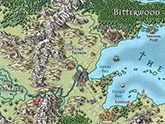
Overland mapping
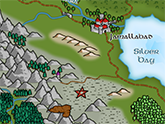
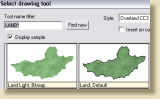 Much of what applies to overland mapping also holds true for other maps so we use it here as an example. With the Landmass tool CC3+ simplifies what could be the most time-consuming part of overland map creation. Choose the default Landmass tool, or one with another style, or customize the land and coast effects to create a new tool. You can add land by sketching, clicking or using fractals.
Alternatively, or additionally, you can import land from Fractal Terrains 3 or place a scanned existing map in the background. To add height detail, CC3+ gives you coloured contours or, for a more fantasy feel, map symbols.
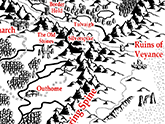
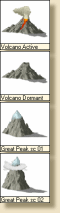 To add mountain symbols you click the mountains button. This opens a symbol palette that contains a wide variety of mountain and hill symbols, as well as setting suitable defaults for color, drawing layer and so on. Click on a symbol, scale and rotate visually, then place on the map. The symbols are carefully designed to add together into regions.
The mountains and contours give you an idea where water will flow. Click the rivers icon and, using CC3+'s precision, add rivers that start, meander and end exactly where you want.
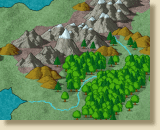 Vegetation is the next step. First mark out the forested areas with the forest drawing tools, then select the Vegetation icon to place individual symbols around the edge.
Next add structures symbols, roads, and other features. With CC3+ you have over 900 symbols to choose from. You can also fill areas with predefined fill styles made from bitmap textures or vector symbols.
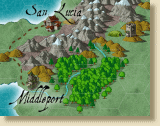 CC3+'s text tools are very simple but powerful, allowing you to move, scale and rotate on the fly so you can fit labels into whatever space you have.
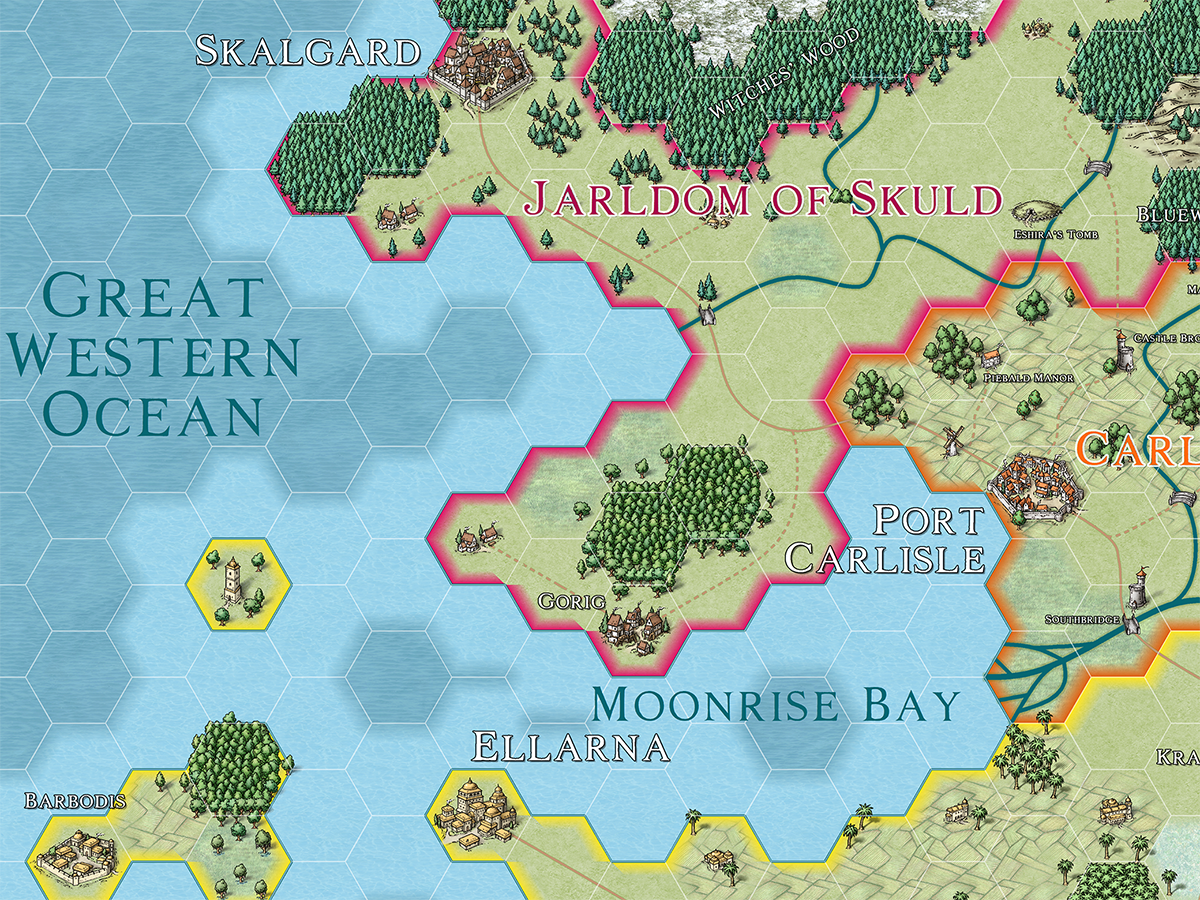
You can also overlay a numbered hex or square grid of any size and, finally, give your map a special touch with effects such as glows, blurs and drop shadows.
More than just a map
When you've made a great looking map, what do you do with it? In summary, view it, print it, export it and link to it. All CC3+ drawing objects are associated with a particular layer; for example, mountains are normally on the MINERALS/MOUNTAINS layer. You can hide and show these layers to create customized maps. If you are playing a war game with a referee and three players, you would set up three extra layers, Player 1, Player 2 and Player 3. The referee can have a map with all the players' information showing, and the players have maps with only their own layers showing. You can view or print with any layers shown or hidden.
View your map
To navigate your maps, you can use the powerful zoom tools, even in the middle of a drawing something else. You can find and zoom to examples of text, save commonly used views or create multiple viewing windows (each showing a different view). CC3+'s vector drawing objects draw extremely quickly and do not lose any detail when you zoom close. CC3+ bitmap objects also display quickly but do take extra processing so, where speed is an issue, CC3+ can automatically select between different resolutions according to zoom level. CC3+'s objects have dimensions in real world units - this makes it easy to measure distances and print at any scale.
Print your map
When you print, you can choose the entire drawing, the current window, or a pre-saved view. You can print on one piece of paper, or across many, with no loss of detail. You can print at an exact scale or fit your print to the paper. For example, you could print a starship deck plan so that one inch on the paper was two metres on the drawing, or your world at 1:10000000.
Export your map
You can export your map, or sections of it, to high resolution JPEG, PNG or BMP bitmap images for use in other applications or the internet. You can also export your map in vector format for use in other CAD programs.
Link your map
CC3+ maps can include clickable links to other maps, documents, websites or applications. For example, in an overland map you might link a city to its detailed map and then, in the city map, link to information on a website.
Drawing help
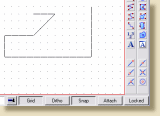
To make the creation of walls and other constructions simple, CC3+ lets you snap your cursor to a pre-defined grid. You can turn this on or off at any time, even in the middle of drawing, and define your own grids. Grids can be rectangular or hexagonal.
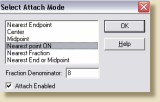 CC3+ also lets you "lock" objects to other objects using the Attach button. Rivers lock precisely to coasts, rooms fit together, all with the minimum of fuss.
If you like the look of a particular object, whether text, symbol or anything else, KEEP lets you add more objects with similar properties. With DRAW LIKE, you can select anything in the drawing and immediately begin drawing similar entities, so just select an existing symbol and add more the same.